
How to Add Captions in Adobe Premiere Pro (2026 Complete Guide)
Two methods. One is built into Premiere Pro. The other takes 60 seconds and is free to start. This guide covers both — with screenshots — so you can pick the right approach for your workflow.
Key Takeaways
- Premiere Pro has two automatic caption routes: the built-in Speech to Text tool (Window → Text → Transcribe) and the CaptionX plugin — this guide walks both with screenshots, plus how to add captions manually.
- The built-in method is multi-step — transcribe, edit the transcript, Create Captions, then style in the Properties panel (Essential Graphics before version 25.0) — and is limited to Adobe's shorter language list with no free quota.
- CaptionX generates styled captions on your timeline in about 60 seconds across 100+ languages, with Short/Medium/Custom caption lengths, Unstyled or Styled editable captions, and a separate Animated tab for animated templates.
- For best accuracy, caption from a clean dialogue track, match the language setting to the spoken audio, and finalise your cut before generating.
Method 1 — Premiere Pro built-in
- Already in your Premiere Pro installation
- Limited language support
- Multi-step workflow through Text panel
- Styling through the Properties panel (Essential Graphics before 25.0)
Method 2 — CaptionX plugin
- Free to start, no credit card
- 100+ languages supported
- Single dedicated panel, 60 seconds per video
- Built-in styling and animated caption options
Method 1: Premiere Pro Built-in Speech to Text
Best for: editors who only occasionally need captions in a supported language and don't want to install a plugin.
Yes, Premiere Pro has auto captions. They come from its built-in Speech to Text feature, which works in two stages: Premiere Pro first transcribes your audio into a text transcript (the Transcript tab of the Text panel), then turns that transcript into timed captions (the Captions tab). You can also turn on Automatic transcription in the Import settings, so clips are transcribed as you import them.
Open the Text panel
Go to Window → Text in the top menu bar. The Text panel will open, usually docked alongside your other panels. You can also switch to the captioning layout with Window → Workspaces → Captions and Graphics.
Click "Transcribe" (or "Transcribe Sequence")
In the Transcript tab of the Text panel, click the Transcribe button (labelled Transcribe Sequence in older versions). A dialog will open asking you to select the language and audio track.
Choose your language and audio track
Select the language spoken in your video and choose which audio track to transcribe. If your language isn't listed, Premiere Pro's Speech to Text cannot process it — see Method 2 for broader language support.
Wait for transcription to complete
Premiere Pro will process the audio and generate a transcript in the Text panel. This can take a few minutes depending on video length and your machine's performance.
Review and edit the transcript
Read through the transcript in the Text panel and fix any words that were transcribed incorrectly. Click on any word to correct it. This step can take significant time for longer videos or content with technical vocabulary.
Click "Create Captions"
Once happy with the transcript, click Create Captions in the Text panel. A dialog lets you choose caption style (subtitle, CEA-608, etc.) and maximum characters per line. Premiere Pro generates a caption track on your timeline. In Premiere 26.3 and later, you can expand Captioning Preferences and choose Single Word under Layout to show one word at a time.
Style captions in the Properties panel (Essential Graphics before 25.0)
Select your captions and open Window → Properties to control font, size, colour, and position (Premiere Pro 25.0 and later). In earlier versions, open Window → Essential Graphics and select your caption track instead. Either way, you adjust the text style through Premiere's general panels — there is no dedicated caption styling interface. See how to edit captions below for each setting.
Limitations to know:
- • Language support is limited to Adobe's documented list — significantly fewer than CaptionX's 100+ supported languages
- • No animated caption templates such as pop-in or word-by-word highlight (Premiere 26.3 added a Single Word layout that shows one word at a time)
- • Styling requires working through Essential Graphics (the Properties panel from version 25.0), not a dedicated caption panel
- • No free caption quota — requires an active Creative Cloud subscription
Faster method below
CaptionX does all of this in 60 seconds with free caption generations. If you haven't installed it yet, you can do that now — it takes about five minutes.
Download CaptionX FreeMethod 2: CaptionX Plugin (Recommended)
Best for: editors who caption regularly, need language support beyond Premiere's built-in list, or want a faster and more streamlined caption workflow.
Before you start:
Download and install CaptionX from caption-x.com/download. It installs as a native Premiere Pro plugin — no browser, no separate app. Once installed, open it from Window → Extensions → CaptionX. Sign in, click Captions on the Home screen, then click the Editable Text tab at the top of the panel. The Captions tool opens on the Animated tab, which doesn't show the caption length and style settings used in Steps 3–5. Want animated captions instead? Stay on Animated, pick a template, check your audio track and language, and click Create Captions.
Select your caption language
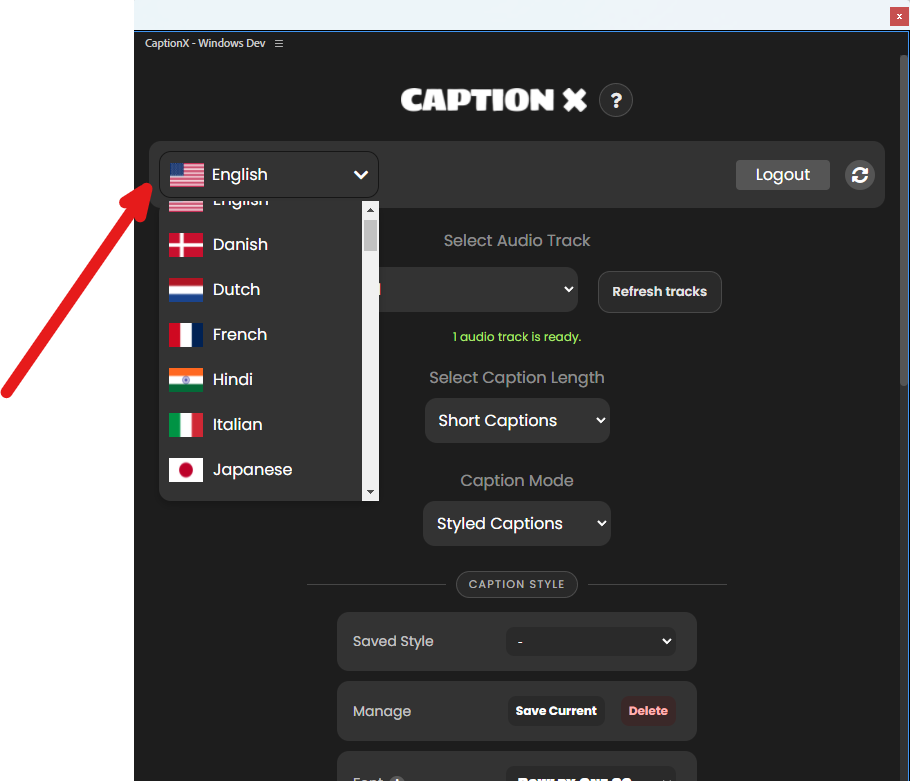
In the Editable Text tab, open the language dropdown and select the language spoken in your video. CaptionX supports 100+ languages — including Arabic, Chinese, Hindi, Japanese, Korean, Urdu, Swahili, and more.
Choose your audio track
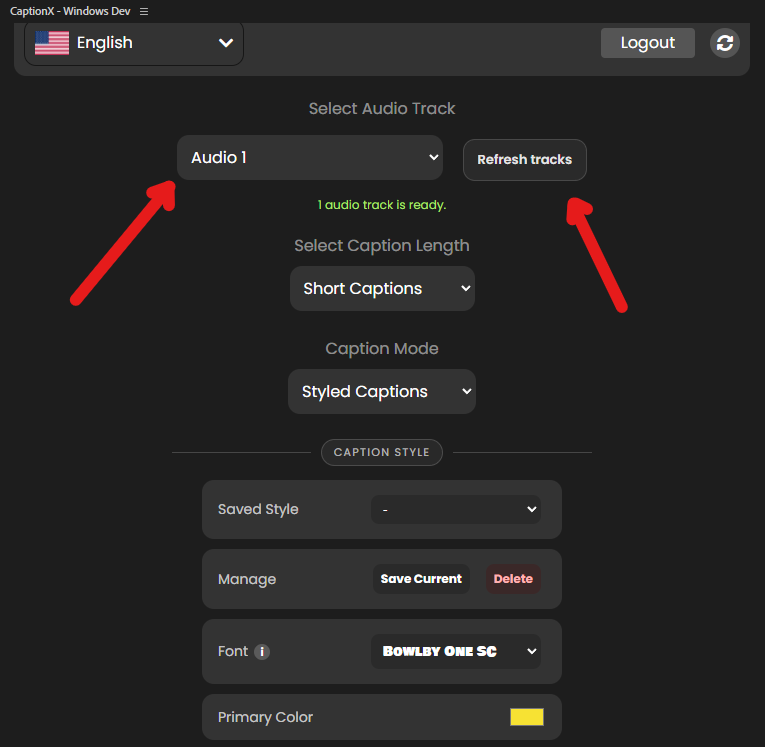
Select the audio track that contains the spoken audio you want to caption. If the dropdown is empty, make sure your sequence has audio on a track and click the Refresh button.
Choose caption length
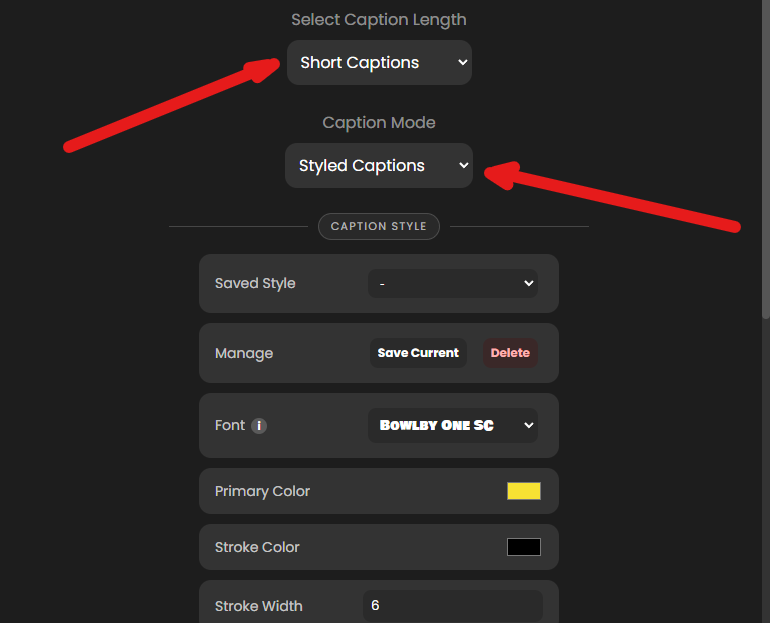
Under Select Caption Length, set how much text appears per caption block. Short creates single-word captions (popular for social media). Medium creates 3–4 word captions. Custom lets you set any value from 1–10 words.
Choose caption style type
Pick how you want CaptionX to build the captions. Caption Mode offers two options: Unstyled gives you plain captions to style yourself in Premiere Pro later, and Styled lets you define the look inside the plugin, with an optional animation style. For animated caption templates, switch to the Animated tab instead.
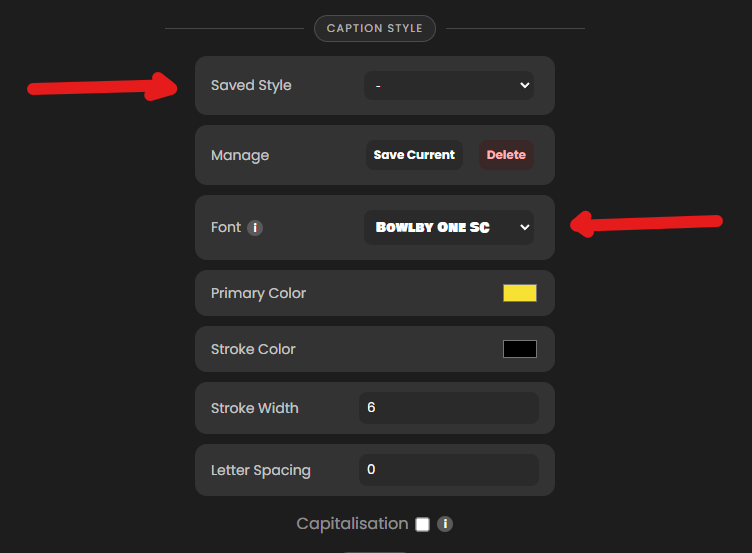
Style your captions (Styled mode)
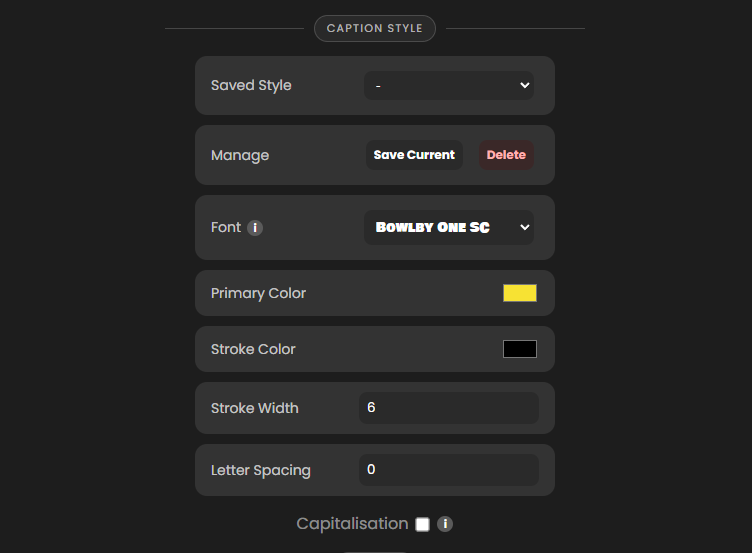
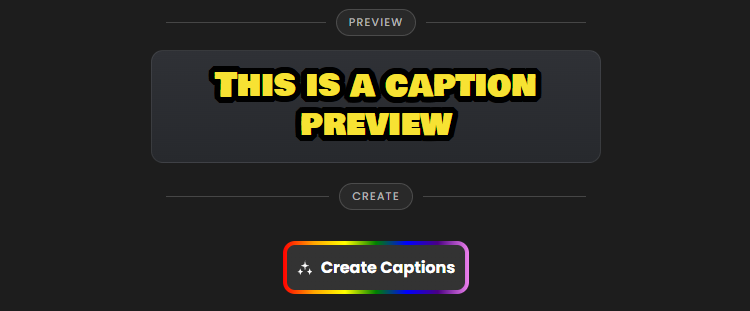
If you selected Styled, configure the look of your captions — font, colour, stroke, size, spacing, and alignment. You can save styles to reuse them across projects. Use the preview area to confirm the final look before generating.

Click "Create Captions"
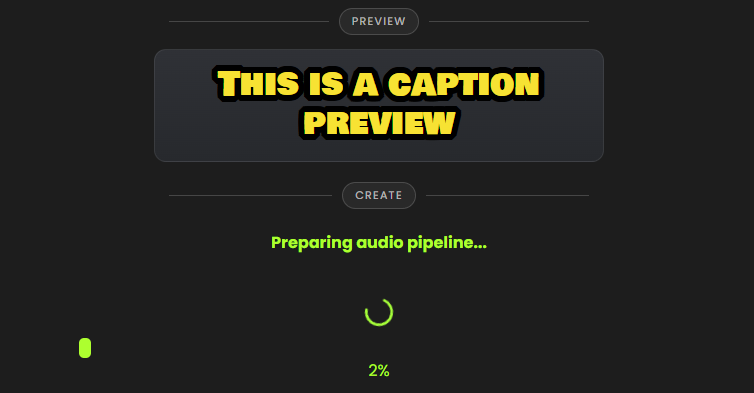
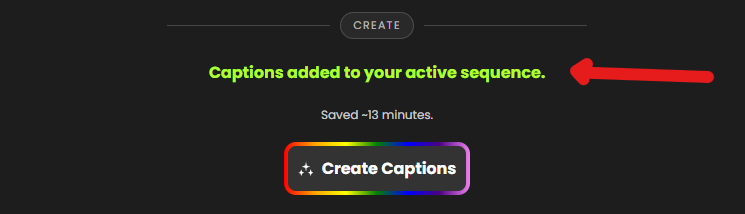
Click the Create Captions button. CaptionX exports the selected audio track, transcribes it, and places captions directly back into your active Premiere Pro sequence. You will see a progress indicator while it processes. When it completes, captions appear on your timeline — timestamped and ready.
How to Create Captions in Premiere Pro Manually
Best for: short clips, or when you need to write every caption line yourself.
Open the Captions tab
Go to Window → Text and open the Captions tab of the Text panel.
Create a new caption track
Click Create new caption track, choose a format (Subtitle suits most videos), and click OK. A caption track appears at the top of your timeline.
Add a caption segment
Move the playhead to where the first line is spoken and click the + button to add a caption segment.
Type your caption text
Type the words for that segment in the Captions tab. Repeat for each line of dialogue.
Adjust the timing
Drag the edges of each caption on the timeline so it appears and disappears in time with the speech.
Manual captions are precise but slow, so for anything longer than a short clip, start from a transcript (Method 1) or CaptionX (Method 2) and edit from there. Already have an SRT file? See how to add subtitles in Premiere Pro for the import workflow.
How to Edit Captions in Premiere Pro
These steps work on any captions or subtitles on a caption track: Speech to Text captions, imported SRT files, manual captions, and CaptionX Unstyled or Styled captions. Premiere Pro 25.0 and later uses the Properties panel; 24.x and earlier uses Essential Graphics (Edit tab).
Fix caption text
Go to Window → Text, open the Captions tab and double-click a caption to retype it, or double-click it in the Program Monitor.
Adjust caption timing
Drag a caption's start or end edge on the caption track. Shift-click several captions to drag them along the timeline together.
Change the caption font, size and colour
Select a caption on the caption track. In the Properties panel, the Text section sets font, style and size, and Appearance sets Fill (colour), Stroke, Background and Shadow.
Move captions on screen
In Properties → Align and Transform, pick a zone (for example top or bottom), then fine-tune with the horizontal and vertical position offsets.
Change all captions at once
After styling one caption, click + next to Track style, choose Create style and save it to the project. A track style applies to every caption on that track, including font, size, colours and position. For later changes, edit one caption, click Redefine Style and apply the changes to all captions in the track. In 24.x and earlier, use Push to Track → All captions on track.
Tips for Better Caption Results
Clean audio produces better captions
Background music, heavy reverb, and overlapping speech all reduce transcription accuracy. Where possible, caption from a clean dialogue track rather than a mixed final mix.
Match the language setting to the spoken language
If your video is in Spanish but CaptionX is set to English, accuracy will be poor. Always check the language selector before generating, especially when switching between projects.
Use Medium length for interview-style content
Single-word captions work well for fast-paced social content. For interviews, documentaries, and corporate video, Medium (3–4 words) reads more naturally and is easier to follow.
Caption before colour grading if possible
Captions are tied to your timeline. If you make significant structural edits to the sequence after captioning, you may need to regenerate. Finalise your cut first, then caption.
Save your style for future projects
If you have a caption style your clients like — a specific font, colour, and size — save it in CaptionX. Future projects apply the same style in one click.
Frequently Asked Questions
How do I add automatic captions in Premiere Pro?
Two methods: (1) Use Premiere Pro's built-in Speech to Text via Window → Text → Transcribe Sequence. (2) Install CaptionX — a dedicated plugin that generates captions on your timeline in seconds, with 100+ language support and free caption generations.
Is there a free way to add captions in Premiere Pro?
Yes. CaptionX includes free caption generations with no credit card required. Caption real projects at no cost and upgrade only when your volume demands it. Premiere's built-in Speech to Text is also available with a Creative Cloud subscription.
How long does it take to caption a video in Premiere Pro?
With CaptionX, generating captions takes under 60 seconds for most videos. The plugin processes your audio, transcribes it, and places captions on your timeline. Manual captioning or extensive transcript editing in Premiere's built-in tools takes significantly longer.
Does Premiere Pro have auto captions?
Yes. Premiere Pro includes Speech to Text that auto-generates captions from audio. CaptionX extends this with 100+ language support, a dedicated caption panel, free caption generations, and animated caption options.
How do I generate captions in Premiere Pro?
Open the Text panel (Window → Text), select Transcribe in the Transcript tab, then select Create captions and pick a preset such as Subtitle Default. Premiere Pro adds a caption track to your timeline. With CaptionX, choose your language and audio track in the plugin panel and click Create Captions.
How do I transcribe audio in Premiere Pro?
Open the Transcript tab of the Text panel (Window → Text) and click Transcribe, or turn on Automatic transcription in the Import settings so clips are transcribed as you import them. This is Premiere Pro's Speech to Text feature. You can edit the transcript, export it as a .txt or CSV file, and turn it into captions.
How do I change the caption font in Premiere Pro?
Select a caption on the caption track, then set the font, style and size in the Text section of the Properties panel (Essential Graphics before Premiere Pro 25.0). To apply the same font to every caption on the track, save it as a Track style.
How do I move all captions in Premiere Pro?
To move captions on screen, use Align and Transform in the Properties panel to pick a zone and adjust the position, then save it as a Track style so every caption on the track follows. To move captions in time, Shift-click to select several captions on the caption track and drag them together.
What is the best caption plugin for Premiere Pro?
CaptionX is a purpose-built automatic caption plugin for Adobe Premiere Pro. It supports 100+ languages, offers free caption generations with no credit card required, and generates captions on your existing timeline in seconds.
Related reading
- → The best auto caption plugins for Premiere Pro, ranked
- → How to make animated captions in Premiere Pro (word-by-word styles too)
- → How to transcribe video in Premiere Pro (export the transcript)
- → How to add subtitles in Premiere Pro (the SRT import/export workflow)
- → Compare CaptionX to every caption tool
- → AutoCut alternative for Premiere Pro · Submagic for Premiere Pro
Start captioning today
Free to Start Inside Premiere Pro
Install CaptionX in five minutes. Caption your first video in 60 seconds. No credit card, no trial, no catch.
Free to start. No trial. No credit card. No catch.