
How to Caption a Podcast in Premiere Pro
(Step-by-Step)
Podcast captioning has a specific set of challenges: long recordings, multiple speakers, sometimes poor audio conditions, and delivery requirements across YouTube, Spotify video, and social media clips. This guide walks through both methods — Premiere's built-in tool and CaptionX — and covers how to handle long-form audio, speaker identification, and multi-platform delivery.
Key Takeaways
- Two ways to caption in Premiere Pro: the built-in Speech to Text tool (Window → Text → Transcript) or the CaptionX plugin — this guide walks both for podcast video.
- Long-form is the main challenge. CaptionX handles full 60, 90, 120+ minute episodes in one generation with no per-minute quota, where built-in transcription can be slower and less accurate on long, jargon-heavy audio.
- Caption once, deliver everywhere: export a sidecar SRT for YouTube, LinkedIn, and Spotify, and burn captions in for Instagram Reels clips cut from the same timeline.
- Review before shipping: caption from your mixed-down track, add [HOST]/[GUEST] speaker labels, cap blocks at ~2 lines / 42 characters, and fix proper nouns and technical terms first.
What You Need
- Adobe Premiere Pro 2026 or later
- Your podcast video or audio-visual recording as a Premiere sequence
- CaptionX plugin (free — install from Adobe Exchange)
Why Podcast Captioning Is Different
Captioning a 3-minute marketing video is a different task from captioning a 90-minute podcast episode. Podcasts create specific challenges that are worth understanding before you start:
File length and processing time
A 60–90 minute episode contains far more audio data than a short video. Some caption tools have clip length limits or monthly minute quotas that a single podcast episode can exhaust.
Multiple speakers
Interview-format podcasts with two or more speakers require caption blocks to be clearly attributed when speakers overlap or interrupt each other. Most AI caption tools do not auto-label speakers — you will need to review and add speaker labels manually if your production standard requires them.
Audio quality variation
Remote guest recordings, room echo, or background noise all affect AI caption accuracy. The cleaner your audio, the more accurate your captions — which is another reason to review rather than just generate-and-ship.
Multi-platform delivery
Podcast video typically goes to YouTube (full episode), social platforms (clips), and sometimes Spotify video. Each platform has different caption format requirements. You need a workflow that handles all three without re-captioning each version.
Two Ways to Caption in Premiere Pro
Method 1 — Premiere Pro Built-in
Window → Text → Transcript
- No additional software
- Works for shorter content
- Slower on long episodes
- Fewer supported languages
- Requires Creative Cloud plan
Method 2 — CaptionX Plugin
Window → Extensions → CaptionX
- Handles full podcast episodes
- 100+ languages
- Free to start
- Captions go directly on timeline
- No per-minute quota
Method 1: Premiere Pro Built-in Speech to Text
Open the Text panel
Go to Window → Text. The Text panel will open with two tabs: Transcript and Captions. Make sure your podcast sequence is open in the timeline.
Run Speech to Text
In the Transcript tab, click Transcribe Sequence. Select your audio track (usually A1 or A2 for podcast), choose your language, and click Transcribe.
For long episodes: Premiere's transcript generation can take several minutes on a 60+ minute podcast. Let it run — don't close the panel or switch sequences while it processes.
Review the transcript
When transcription completes, review the text in the Transcript panel. Correct any errors — proper nouns, technical terms, and guest names are common accuracy issues in podcast content. Click any word to jump to that point in the timeline.
Create caption track
Click Create Captions in the Transcript panel. Choose your caption format (Subtitle is the most common for web delivery), set maximum characters per line, and click Create. Premiere will generate caption blocks from the transcript.
Review caption timing
Switch to the Captions tab and play through your episode. Caption timing should be accurate if the transcript was clean. Adjust any blocks where timing feels off — especially around cross-talk or pauses.
Export
Export your episode normally — the caption track embeds in the file. To export a standalone SRT file for YouTube: go to File → Export → Captions and select SRT format.
Limitation for long podcast episodes
Premiere's built-in transcription is adequate for short content but can struggle with long-form audio — specifically with accuracy on non-standard speech patterns, accents, and fast-talking guests. For a 90-minute interview with a technical guest using industry jargon, expect more correction time than a standard short video.
Want faster, more accurate podcast captions?
CaptionX handles long-form podcast audio in a single click — no transcript step, no video upload, free to start.
Method 2: CaptionX Plugin (Recommended for Podcasts)
CaptionX is purpose-built for video captioning inside Premiere Pro. It handles long-form audio, generates captions directly on your timeline, and is free to start — with no per-minute quota that a single podcast episode will exhaust.
Install CaptionX from Adobe Exchange
Search "CaptionX" in the Adobe Exchange marketplace and click Install. The plugin installs directly into Premiere Pro — no additional software needed.
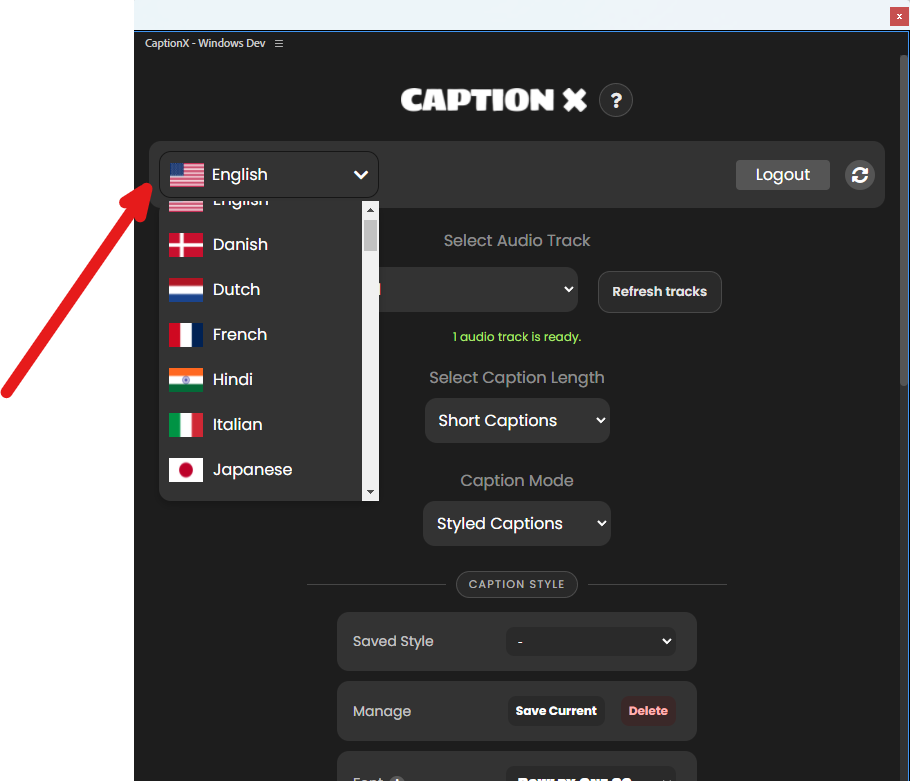
Open the CaptionX panel in Premiere
With your podcast sequence open, go to Window → Extensions → CaptionX. The CaptionX panel will dock in your Premiere workspace.
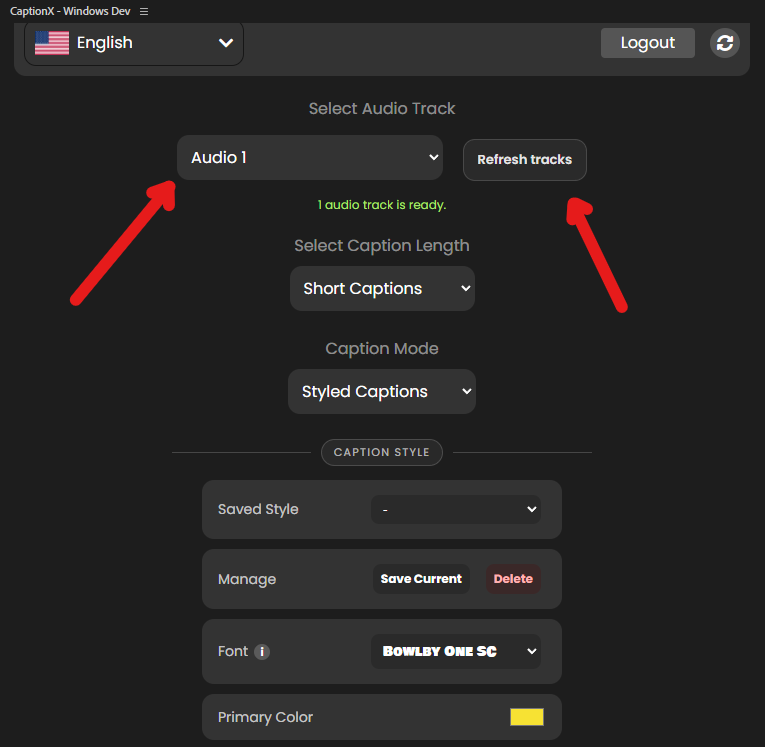
Select your audio track
In the CaptionX panel, select the audio track that contains your podcast dialogue. For multi-track recordings — where host and guest are on separate tracks — select the track with the primary mix, or the main output track if you've already mixed down.
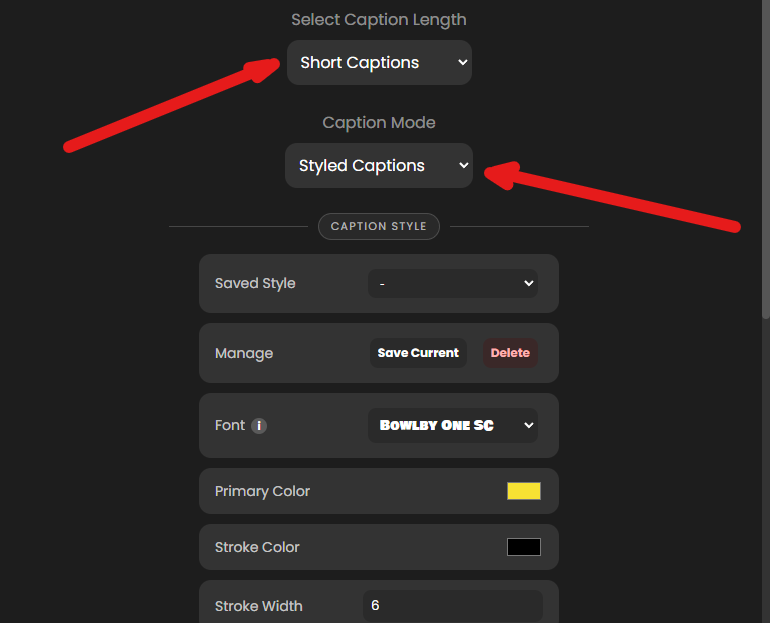
Choose your language
CaptionX supports 100+ languages. Select the language your podcast is recorded in — this significantly affects accuracy. If your podcast includes code-switching between languages, choose the dominant language.
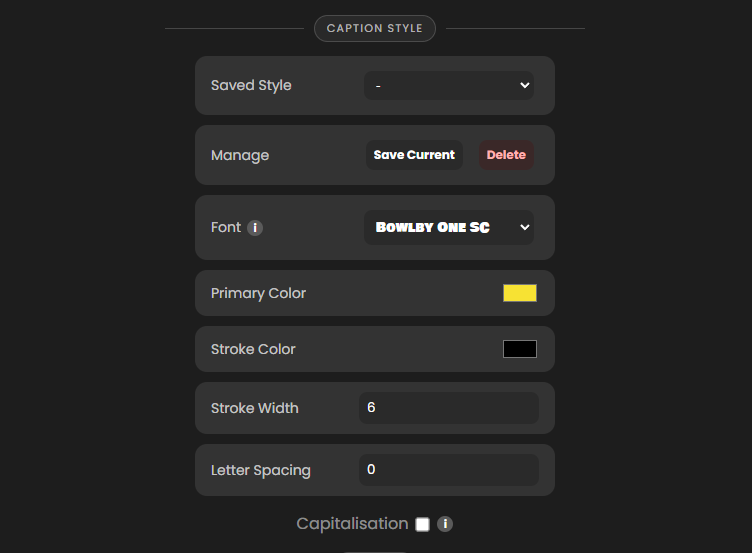
Generate captions
Click Generate Captions. CaptionX processes your full episode — including long-form audio — and places caption blocks directly on your Premiere timeline. For a 60-minute episode, processing typically takes a few minutes depending on your connection and system.
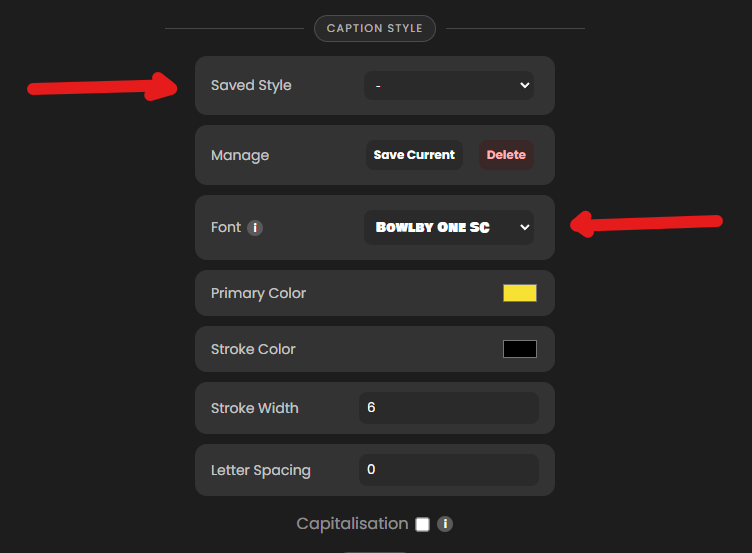
Review and edit captions on the timeline
Play through your episode and review the captions in the Captions panel. Double-click any caption block to edit text. For podcast content, pay particular attention to: guest names, technical terms, numbers and statistics, and any cross-talk moments where the AI may have blended two speakers' words.
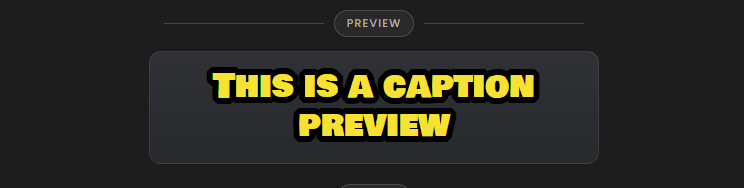
Exporting for Multiple Platforms
Podcast video typically goes to at least two or three platforms — and each one has different caption requirements. Here's how to handle each without re-captioning:
Export your episode normally — the closed caption track embeds in the file. Alternatively, export a standalone SRT file via File → Export → Captions → SRT and upload it to YouTube Studio alongside your video. SRT upload gives you more control over caption visibility and YouTube SEO indexing.
Tip: Uploaded captions index as searchable text on YouTube — better than YouTube's auto-generated captions for discoverability.
For social media clips cut from your episode, export with Burn Captions Into Video enabled in your export settings. Instagram does not reliably render separate caption tracks — burned-in captions are the safe approach.
The same captions you generated for the full episode are already on your timeline. Just cut the clip and export with burn-in enabled.
LinkedIn supports SRT upload for native video. Export your SRT file from Premiere and upload it alongside your LinkedIn video post. LinkedIn users often watch video without sound in professional contexts — captions significantly increase engagement.
Spotify supports SRT caption files for video podcast episodes via Spotify for Podcasters. Export your SRT from Premiere and upload it alongside your episode file. Spotify's caption support continues to expand — verify current upload requirements in Spotify for Podcasters at the time of your upload.
Podcast-Specific Caption Tips
Caption your mixed-down track, not individual tracks
If you have host and guest on separate audio tracks, caption from the mixed-down stereo output rather than individual tracks. Captioning individual tracks and merging results introduces timing drift. Let the final mix be what the caption tool hears.
Add speaker labels for interview-format podcasts
AI caption tools don't automatically label speakers. For interview content, manually add [HOST] and [GUEST] labels to caption blocks at speaker transitions. This takes time on a long episode but significantly improves the viewer experience for deaf and hard-of-hearing viewers.
Cap captions at 2 lines, 42 characters per line
A standard broadcast caption guideline that holds for digital content too. Longer caption blocks compress into smaller text on mobile screens — particularly relevant for podcast clips posted to social platforms where viewers are mostly on phones.
Review proper nouns and technical terms first
AI caption accuracy is high for common English but degrades on industry jargon, brand names, product names, and guest names. Do a focused pass for these before spending time on general caption review — you'll find the high-impact corrections faster.
Keep your original caption track for clip re-use
When cutting clips from a long episode, the caption blocks for that clip are already on your timeline. There is no need to re-caption a 3-minute clip you cut from a captioned 60-minute episode — just trim your sequence to the clip and export.
Common Questions
Can I caption a 2-hour podcast episode with CaptionX?
Yes. CaptionX has no hard clip length limit. Long-form podcast episodes — 60, 90, 120+ minutes — process in a single generation. Processing time scales with episode length, but you don't need to split the episode or caption it in chunks.
How accurate are AI captions on podcast audio?
For well-recorded podcast audio with a single primary speaker, modern AI caption tools (including CaptionX) typically achieve 90–95%+ word accuracy for standard English. Accuracy decreases with: strong accents, heavy background noise, rapid overlapping speech, and highly technical or niche vocabulary. Always review before delivering to a client.
Do I need to caption the full episode or just my social clips?
Both — but your workflow is the same. Caption the full episode, then cut clips from the same timeline. Your clips already have captions from the full episode generation. There's no additional caption step for clips.
My podcast has two hosts on separate audio tracks. Which track do I caption?
Caption from your final mixed-down audio track — the stereo output that contains both hosts. If you haven't mixed down yet, temporarily export a stereo mixdown and caption that. Captioning from individual tracks and combining results is significantly more complex and error-prone.
Can I use CaptionX on a podcast that isn't in English?
Yes. CaptionX supports 100+ languages. Select your podcast's language in the CaptionX panel before generating captions. Non-English language accuracy depends on the language — major world languages (Spanish, French, German, Portuguese, Japanese, etc.) perform well.
Related articles
Caption Your Podcast Inside Premiere Pro
Full Episodes. Free to Start. No Video Upload.
CaptionX handles long-form podcast audio directly inside Premiere Pro. Generate, review, and export captions for YouTube, Instagram clips, and LinkedIn — all without leaving your editing workspace.
Get CaptionX FreeFree to start. No trial. No credit card. No catch.