No more manual razor cuts
Stop scrubbing through your timeline hunting for dead air. CaptionX scans your entire sequence and removes every silent gap automatically.

Cut dead air, long pauses, and silent gaps from your Premiere Pro timeline in one click. No manual razor cuts, no exporting, no scrubbing.
Free to try — no credit card required.
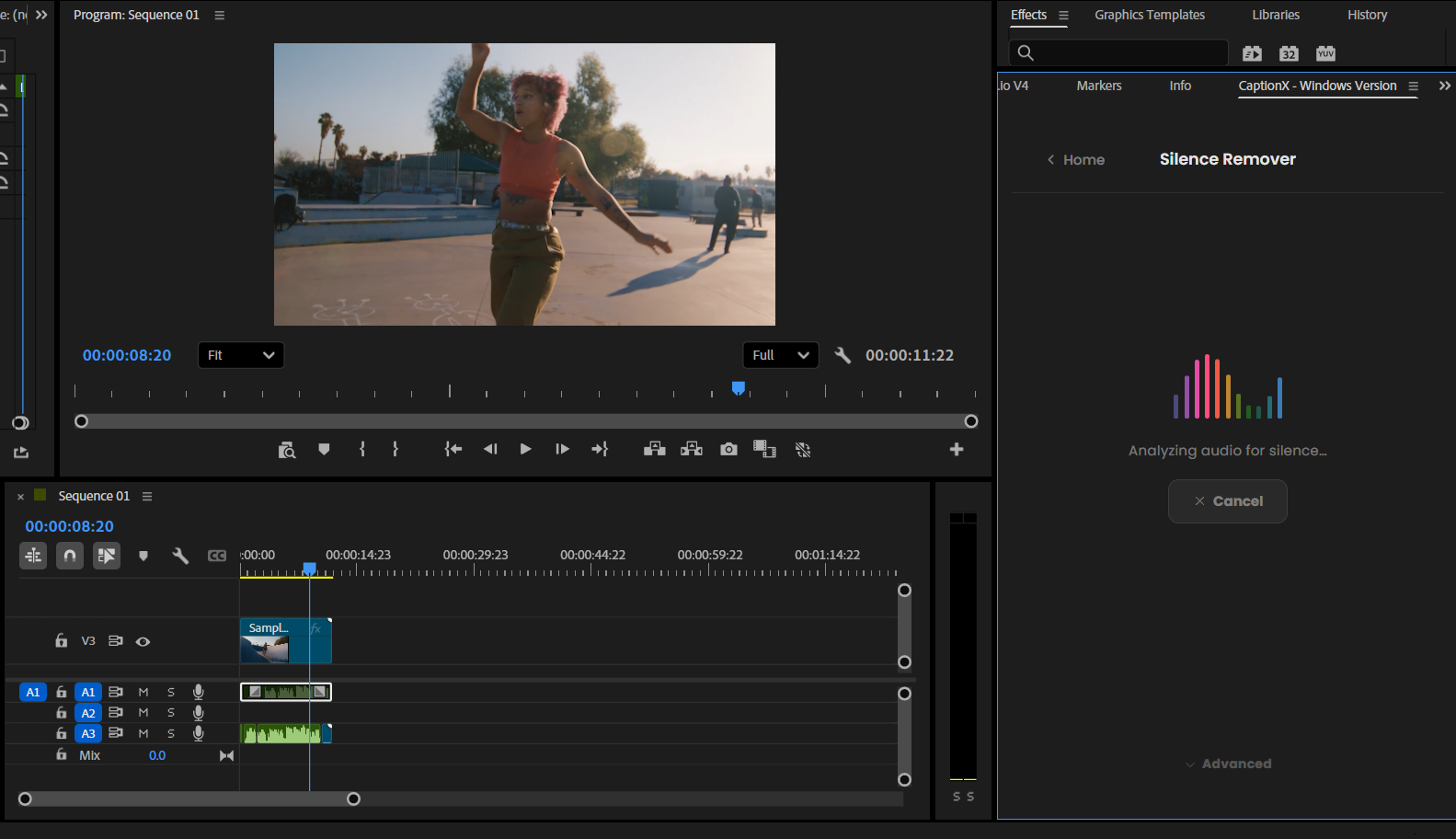
Stop spending edit time on silence. CaptionX handles it in seconds.
Stop scrubbing through your timeline hunting for dead air. CaptionX scans your entire sequence and removes every silent gap automatically.
Control your dB threshold to match your audio level and set a minimum gap duration so natural breathing pauses stay untouched.
No exporting. No re-importing. No 2-minute clip limits. CaptionX operates on your active Premiere Pro sequence regardless of length.
Cut audio only, or choose to keep video in sync — CaptionX applies cuts to both audio and linked video tracks together so your footage never drifts out of sync.
Silence removal that used to take 20–40 minutes of manual work now takes seconds. Get a tighter, faster-paced edit without the grind.
How it works
Three steps. No export. No leaving Premiere Pro.
Launch the CaptionX extension panel from your Extensions menu. The silence remover is built right in — no separate tool needed.
Choose your silence dB level and set a minimum gap duration. This tells CaptionX exactly what counts as silence for your recording.
Hit detect. CaptionX scans your sequence, finds every silent gap, and removes them all from your timeline in one click.
Who uses it
Any editor who records speech — interviews, podcasts, voiceovers, presentations — spends time cutting silence. CaptionX gives that time back.
Also included in CaptionX
CaptionX also includes AI auto captions in 100+ languages, filler word removal, and more — all inside the same Premiere Pro extension panel.
CaptionX is a native Adobe Premiere Pro extension that removes silence directly from your timeline in one click. Set your dB threshold, hit detect, and all silent gaps are cut automatically — no exporting or re-importing required.
Install CaptionX, open the extension panel, set your silence threshold and minimum gap duration, then hit detect. CaptionX finds every silent gap in your sequence and removes them all in one click.
Yes. CaptionX has no clip length limit. It scans your entire Premiere Pro sequence regardless of length — ideal for long podcast recordings, interviews, or lecture captures.
Yes. You set the dB threshold to match your recording level, and a minimum gap duration to ignore short natural pauses. This gives you precise control over what gets cut.
Yes — and it's optional. You can choose to cut audio only, or enable video sync so CaptionX cuts both the audio and linked video tracks together. When video sync is on, your footage stays perfectly in sync after every cut with no drift or manual re-alignment.
CaptionX detects silence on audio tracks in your sequence. You then choose whether to apply cuts to audio only, or to also cut the linked video tracks to keep everything in sync.
Create a CaptionX account, download the plugin from your dashboard, and install it into Adobe Premiere Pro. The silence remover is included in the CaptionX panel — no separate download required.
Install CaptionX, open your sequence, and remove all dead air in one click — no export, no scrubbing, no manual razor cuts.
Free to try — no credit card required.