
DaVinci Resolve subtitles: what the free version can and can't do
The quickest way to pick a method is to know what your version of DaVinci Resolve allows. This is what we found in the free version of DaVinci Resolve 21.1.1 on October 12, 2026.
| What you want to do | Free version | Studio |
|---|---|---|
| Add a subtitle track and type subtitles | Yes | Yes |
| Import an SRT file | Yes | Yes |
| Create subtitles from audio (Resolve's own) | No | Yes |
| Auto captions with CaptionX | Yes | Yes |
| Subtitle Settings on the Deliver page | Yes | Yes |
How to add captions in DaVinci Resolve automatically
This is the fastest way, and the only automatic one in the free version. CaptionX for DaVinci Resolve transcribes your timeline in 100+ languages and adds the captions for you. It works in Studio as well.
- 1
Install CaptionX and sign in
Download it for Windows or Mac below. A free account is enough to try it.
- 2
Open it from DaVinci Resolve
Click Workspace › Scripts › CaptionX. That connects CaptionX to the timeline you have open.
- 3
Pick a style, the audio track and the language
Choose an animated template or plain Editable Text. Leave the language on auto-detect, or set it.
- 4
Click Create and check the transcript
Fix any word in the transcript, then the captions are added to your timeline as titles you can still edit.
Free to try. Works with the free version of DaVinci Resolve and with DaVinci Resolve Studio. The Mac download runs on Intel and Apple silicon.
How to add subtitles in DaVinci Resolve from an SRT file
If you already have subtitles as an .srt file, DaVinci Resolve can import it. This works in the free version.
- 1
Import the file
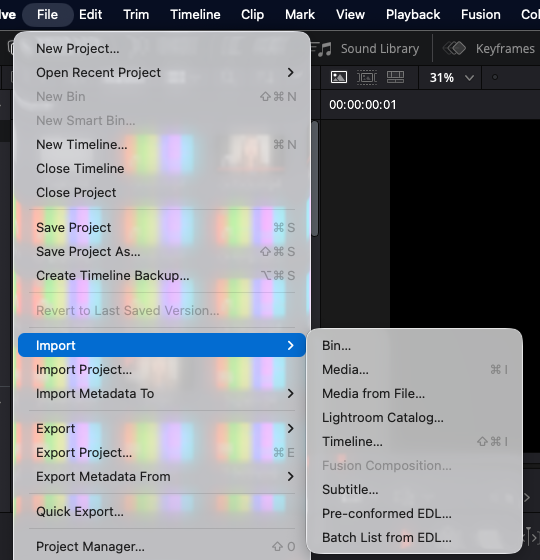
Go to File › Import › Subtitle and choose your .srt file. It appears in the Media Pool.
- 2
Put it on your timeline
Drag it from the Media Pool onto the timeline. DaVinci Resolve places it on a subtitle track.
- 3
Check the timing
Play through a few subtitles. If they are all early or late by the same amount, select all the subtitles and slide them together.
Don't have an SRT yet? Our free subtitle generator makes one from a video in your browser, and CaptionX can save one from your timeline: see DaVinci Resolve transcription.
How to add a subtitle track and type subtitles by hand
For a short video, or a few lines of translation, typing them is fine.
- 1
Add a subtitle track
On the Edit page, right-click a track header and choose Add Subtitle Track.
- 2
Add a subtitle
Move the playhead to where the line starts, right-click the subtitle track and choose Add Subtitle.
- 3
Type the text and set its length
Type the line in the Inspector, then drag the ends of the subtitle so it starts and ends with the speech.
- 4
Style the track
Font, size, colour and position are set in the Inspector for the subtitle track.
DaVinci Resolve subtitle generator: Create Subtitles from Audio (Studio)
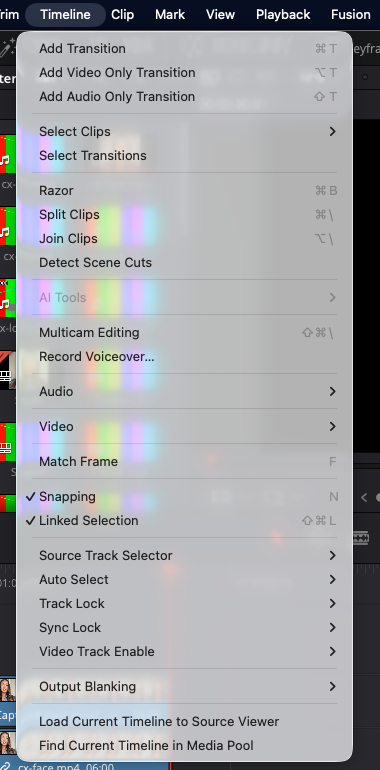
DaVinci Resolve Studio has its own subtitle generator: Timeline › AI Tools › Create Subtitles from Audio. It transcribes on your computer and fills a subtitle track.
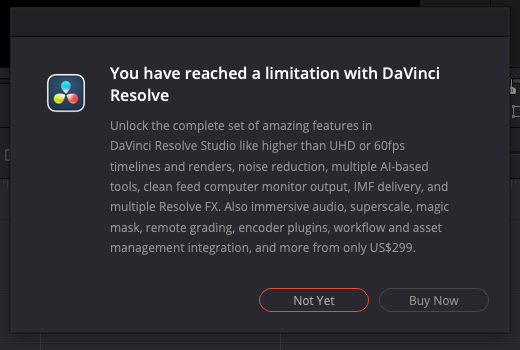
In the free version that menu is greyed out. We also asked the free version to create subtitles from audio through its scripting interface: it made nothing and showed this message.
Animated subtitles in DaVinci Resolve
Subtitles on a subtitle track are plain text: one look for the whole track. The word-by-word, pop-in subtitles you see on Shorts and Reels are made with titles. CaptionX adds those for you from templates such as Word Pop and Word Fill, as Text+ titles you can still edit, in 100 languages.
How to export subtitles from DaVinci Resolve
On the Deliver page, open Subtitle Settings in the Video tab and tick Export Subtitle. From there you choose whether the subtitles are burned into the video or exported as a separate file. Subtitle Settings is there in the free version too.
If your subtitles are not showing in the exported video, this is the first thing to check: a subtitle track is only exported when Export Subtitle is ticked. Captions made as titles are part of the picture, so they are always in the export.
Questions
How do I add subtitles in DaVinci Resolve?
There are three ways. Automatically: a plugin such as CaptionX transcribes your timeline and adds the subtitles for you, in the free version too. From a file: import an .srt with File › Import › Subtitle and put it on your timeline. By hand: add a subtitle track and type each subtitle.
Can the free version of DaVinci Resolve create subtitles automatically?
Not by itself. In the free version of DaVinci Resolve 21 the Timeline › AI Tools menu, which holds Create Subtitles from Audio in Studio, is greyed out. The free version can still show subtitles you import or type, and a plugin such as CaptionX can create them.
How do I add captions in DaVinci Resolve automatically?
Install CaptionX, click Workspace › Scripts › CaptionX in DaVinci Resolve, pick a caption style and click Create. CaptionX transcribes the audio track you choose and adds the captions to your timeline as titles you can still edit.
How do I import an SRT file into DaVinci Resolve?
Go to File › Import › Subtitle and choose your .srt file. It appears in the Media Pool; drag it onto your timeline and DaVinci Resolve puts it on a subtitle track. This works in the free version.
How do I export subtitles from DaVinci Resolve?
On the Deliver page, open Subtitle Settings in the Video tab and tick Export Subtitle. You can burn the subtitles into the video or export them as a separate file. Subtitle Settings is there in the free version as well.
Why are my subtitles not showing in the exported video?
Subtitles on a subtitle track are only included when Export Subtitle is ticked under Subtitle Settings on the Deliver page. Captions made as titles, such as CaptionX's animated captions, are part of the picture and always export with it.
Are DaVinci Resolve subtitles closed captions or open captions?
It depends on how you export them. Subtitles burned into the video are open captions: they are always visible. Subtitles exported as a separate file, such as an .srt, can be uploaded to YouTube and other platforms as closed captions that viewers switch on or off.
How do I make animated subtitles in DaVinci Resolve?
Subtitles on a subtitle track are plain text. Animated, word-by-word subtitles are made with titles. CaptionX adds them for you as Text+ titles from templates such as Word Pop and Word Fill, and you can still edit each one in DaVinci Resolve.